Stock Summary
This document explains how to manage the Stock Summary in the Jova POS system. This feature allows you to view and monitor the status of available stock items in stores or warehouses.
Stock Summary Flow
The general flow is:
- Access the Inventory → Stock Summary menu.
- Select a Product Name or SKU to view stock details.
- Use filters to select category, item condition, minimum or maximum price.
- The Stock Summary table will display information about available stock quantities.
- Click Export to Excel to download the stock summary data.
1. Accessing the Stock Summary Menu
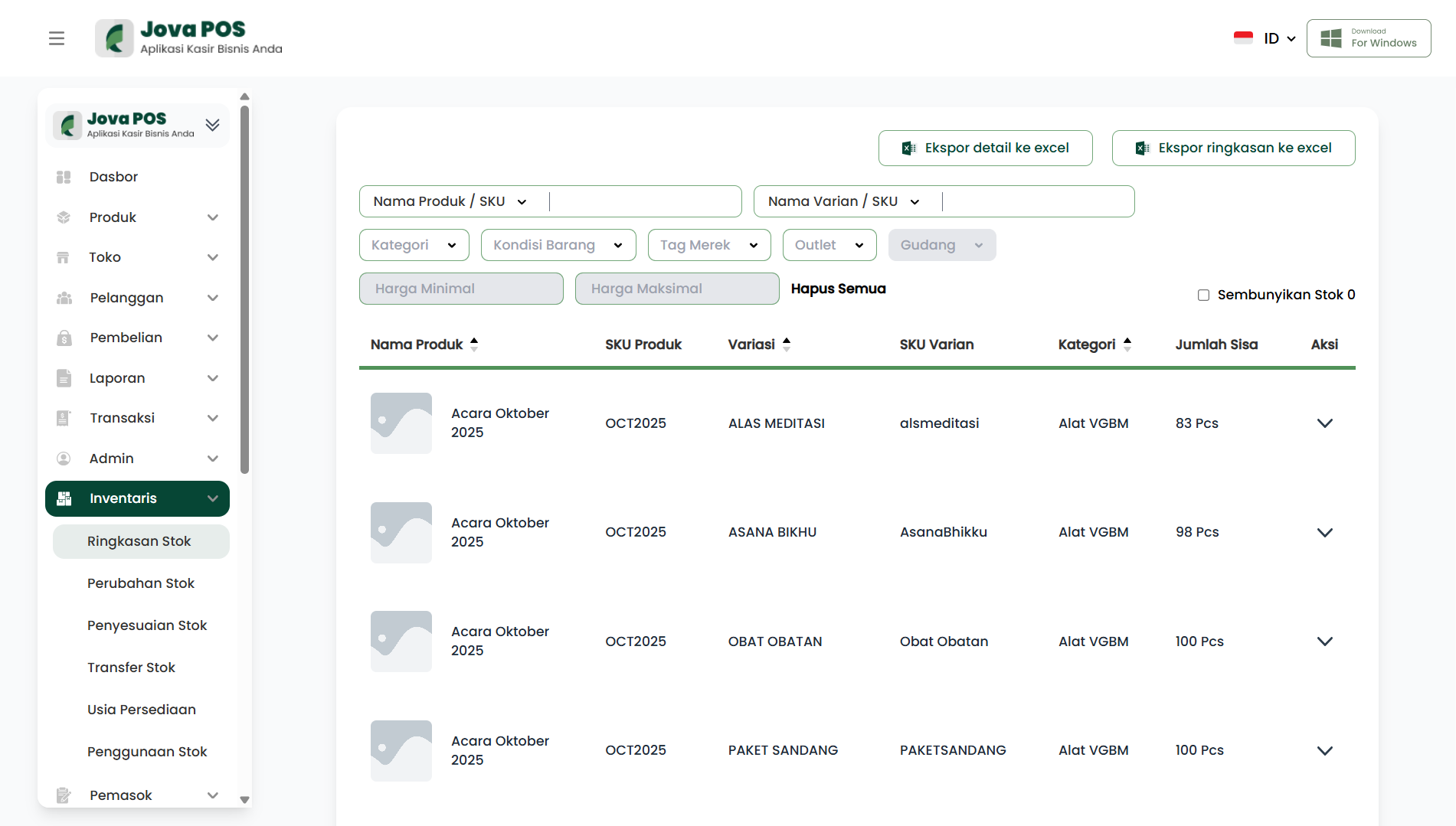
- In the sidebar, click Inventory.
- Select Stock Summary to access the stock summary page.
2. Filtering Stock Data
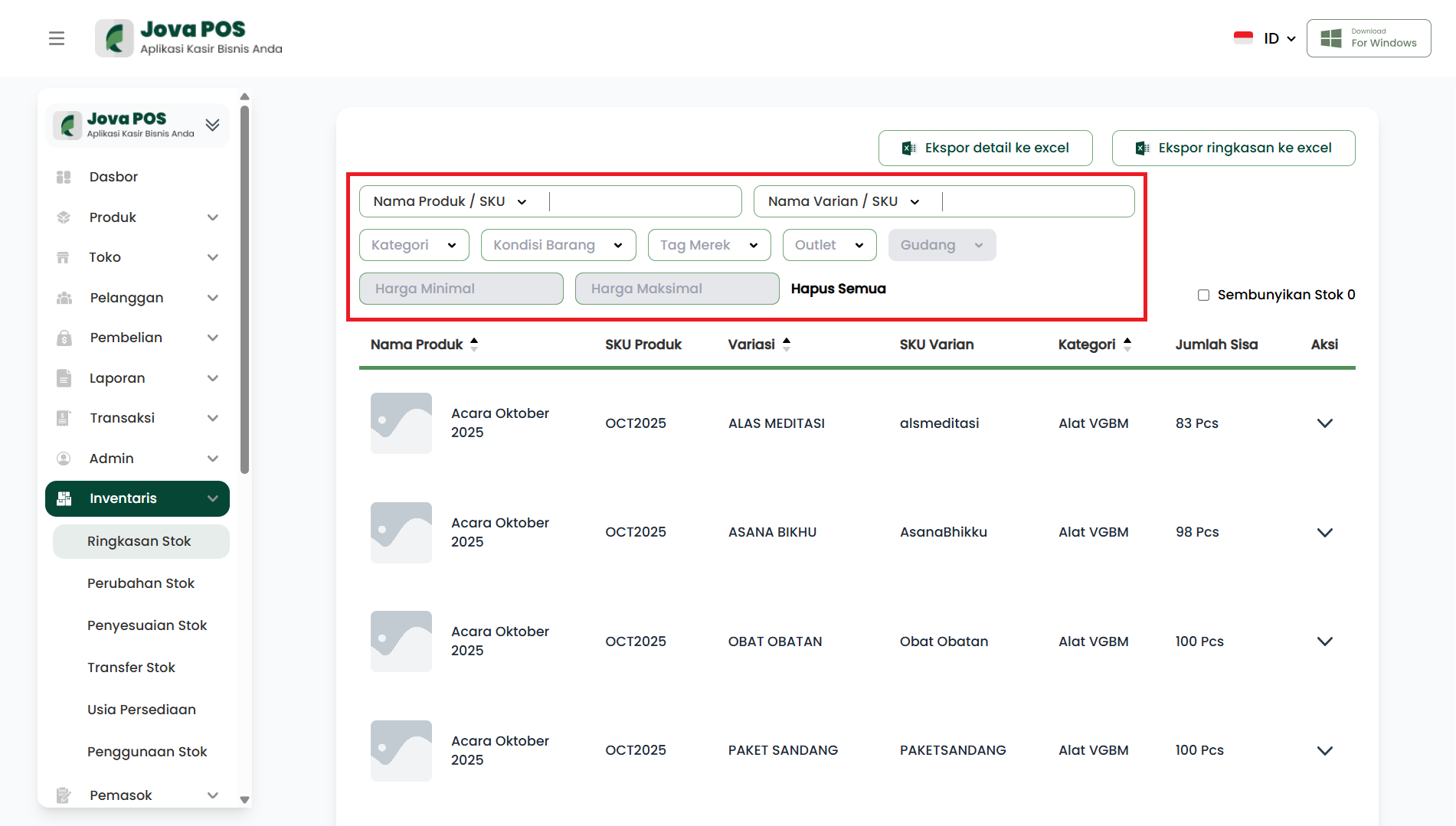
On the Stock Summary page, you can use filters to adjust the data display based on the following criteria:
- Product Name/SKU: Select a product name or SKU to view stock details.
- Category: Select the product category to display.
- Item Condition: Select item condition (new, used, etc.).
- Minimum and Maximum Price: Set a price range to display products within budget.
- Warehouse and Outlet: Select the relevant outlet or warehouse.
3. Viewing Stock Summary
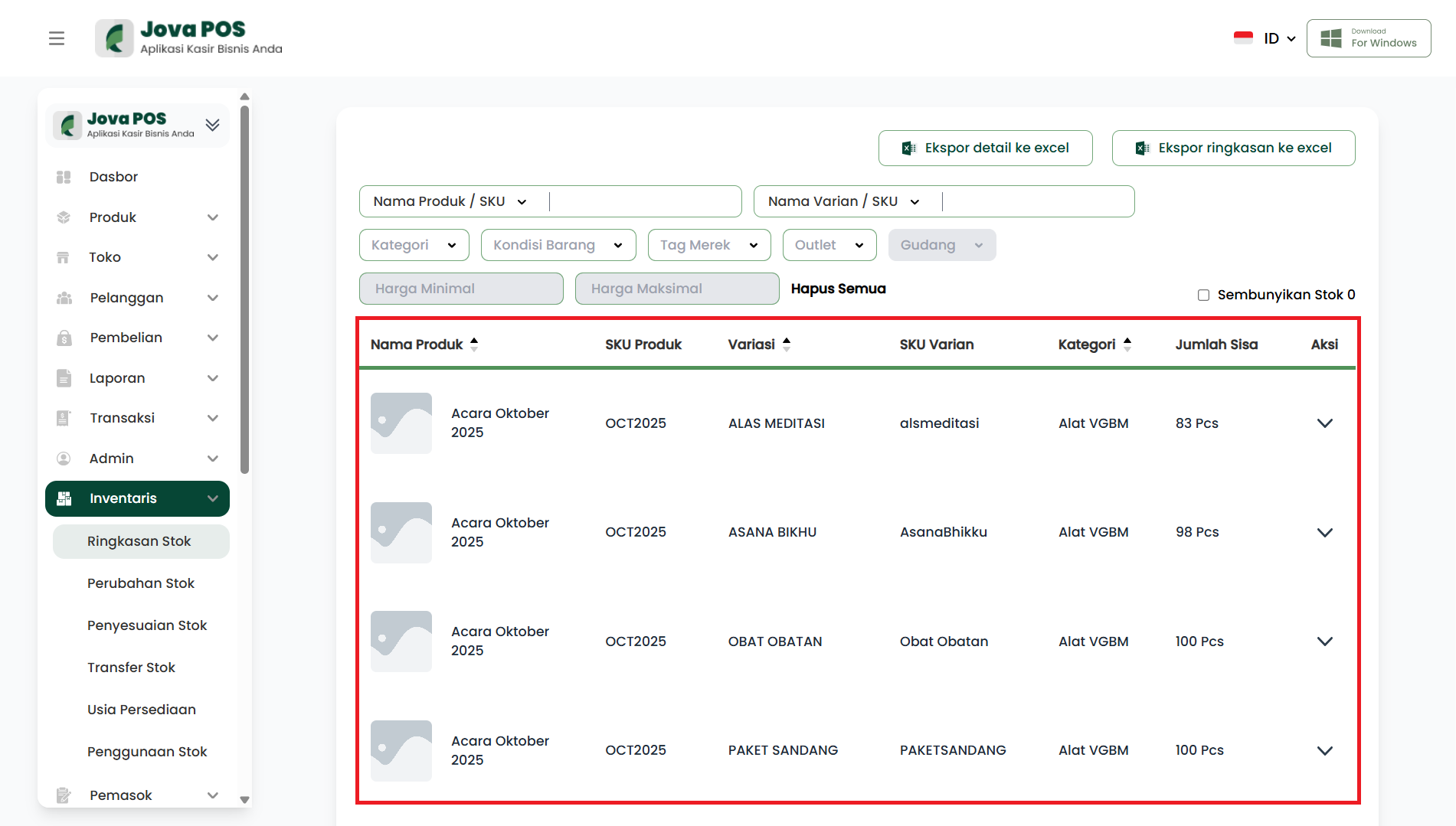
The stock summary will display data including:
- Product Name: The name of the available product.
- Product SKU: The unique code for each product.
- Variant SKU: The code for product variants (if any).
- Category: The category of the product.
- Remaining Quantity: The amount of stock available in the warehouse or outlet.
4. Hiding Zero Stock
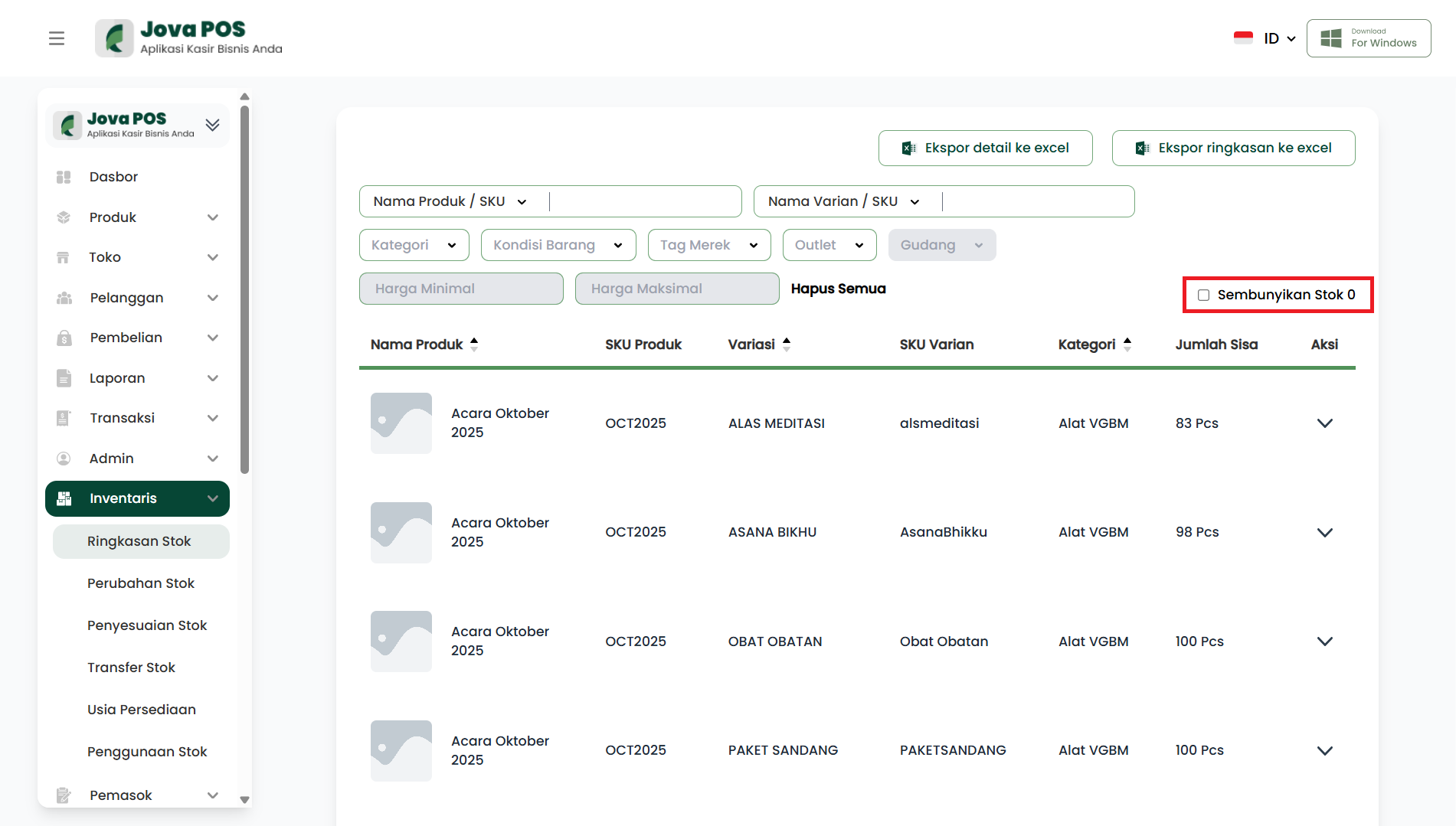
If you want to hide products with zero stock, check the Hide Zero Stock box at the top of the table.
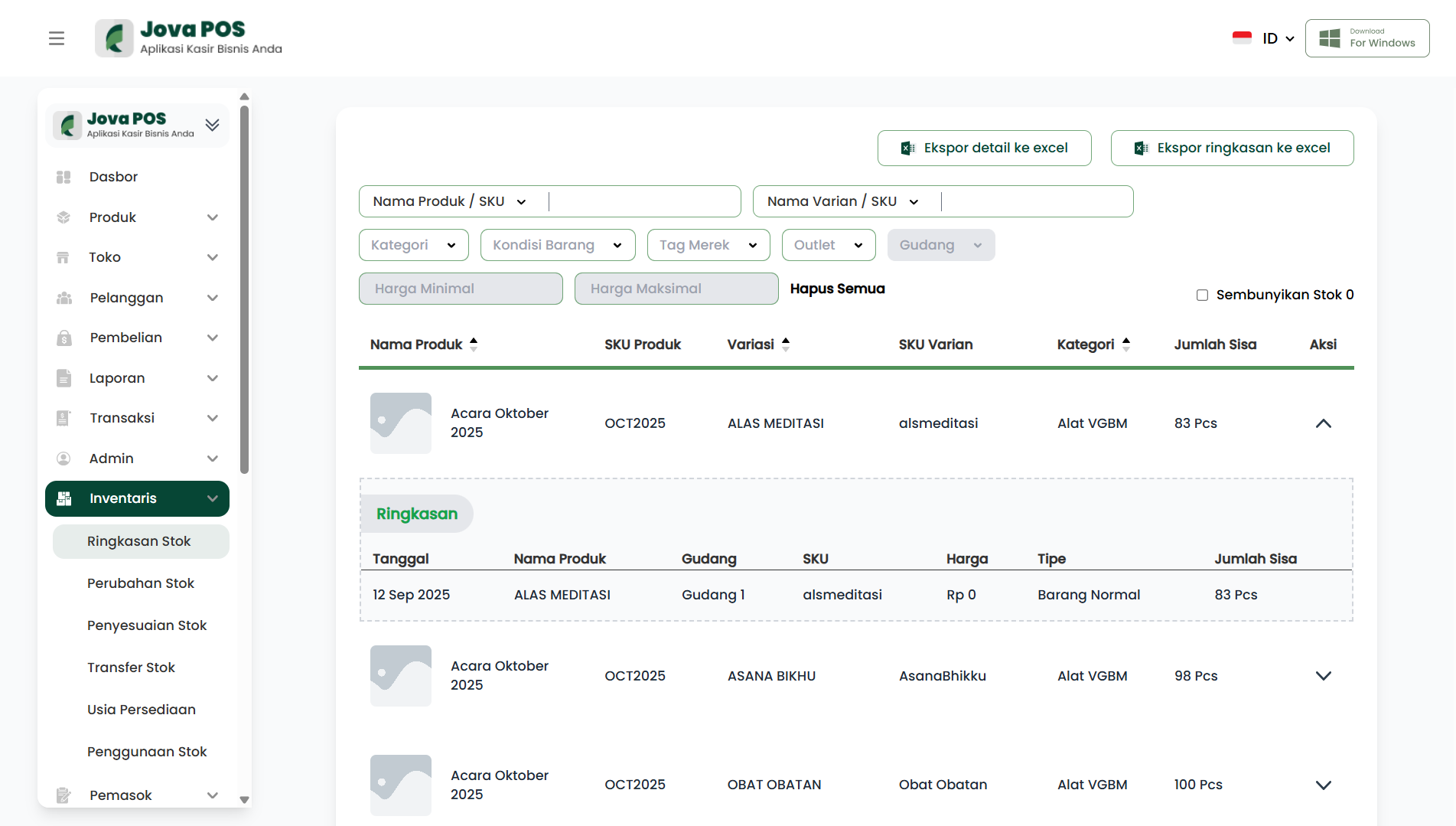
5. Viewing Stock Details via Actions
Each product in the Stock Summary table has an Action button in the last column. Click the Action button to view additional details, such as stock history, price information, or update stock data.
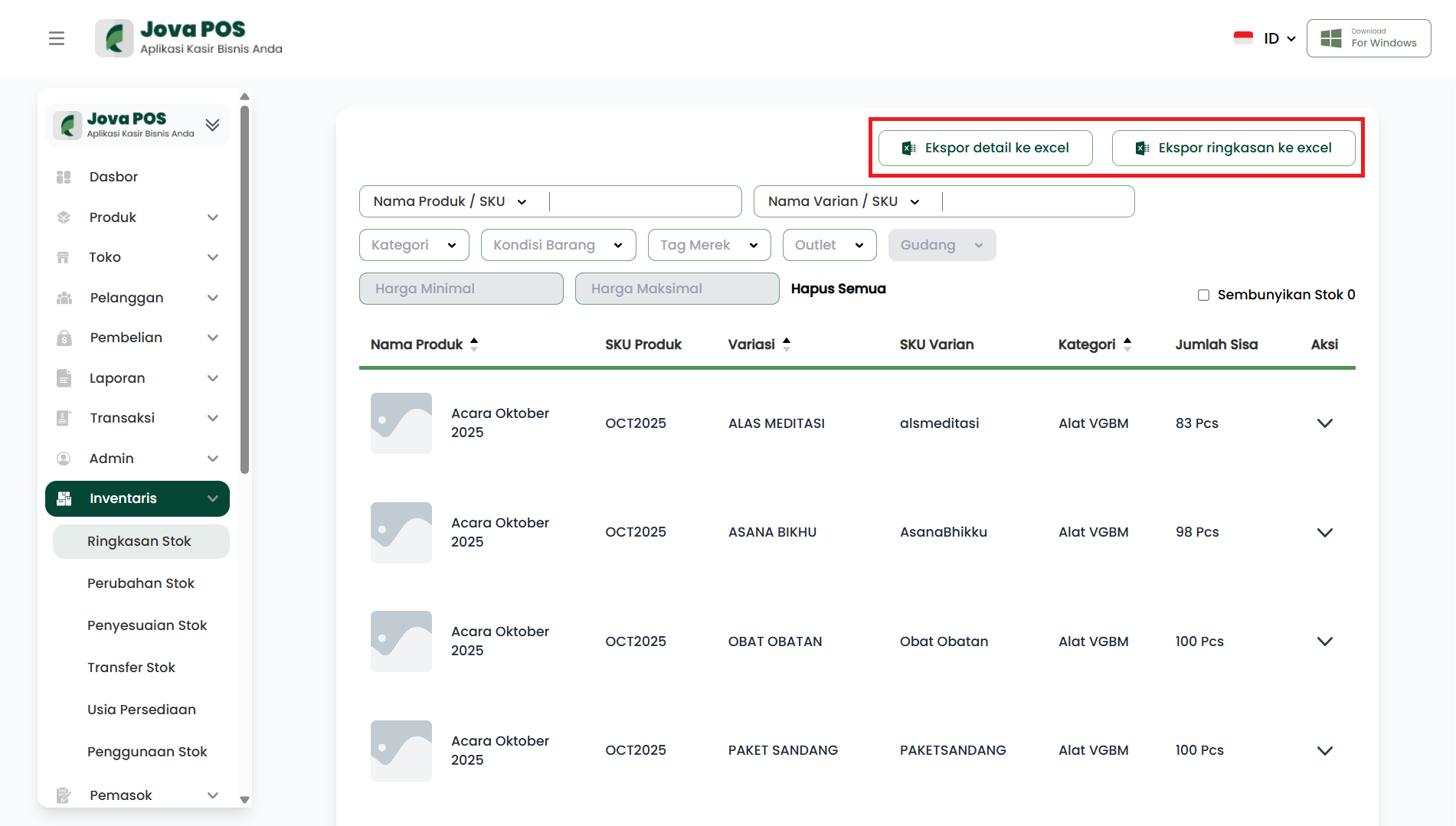
6. Exporting Stock Summary to Excel
To export the stock summary data, click the Export summary to excel button located in the top right of the table.
Conclusion
With the Stock Summary feature in Jova POS, you can easily monitor and manage stock items in stores or warehouses. The filtering and data export processes can be done quickly, making inventory management easier.